Offline-first mobile app
Works with no signal. Syncs when it has one.
An offline job management app for the trades that actually work where there is no signal: the iPhone, Android and Windows apps keep the round on the device, let you mark visits done and add customers with no connection, queue the changes, and sync them with conflict resolution when you are back in range.
30-day free trial · No card required · Web app today, mobile & Windows apps in pilot

- Web Open nowBeta
 Coming soon
 Coming soon
 Coming soon
A basement, a rural round, a site with no coverage: the app has to keep working. TradeYoke's mobile apps are offline-first for the daily round. The day's stops are on the device; done, skipped and notes are recorded locally; new customers can be added; and an outbox queues each change with an idempotent id so a retry never duplicates. When connectivity returns the sync engine pushes your changes first, then pulls, and resolves conflicts by rules that never overwrite work you did offline.
What it does
Offline-first mobile app in TradeYoke
The round on the device
Today's window cleaning or gardening round is stored locally with every stop's notes.
Done and skipped offline
Mark visits done or skipped, add notes, with no connection.
Add customers offline
New customers created in the field sync when you are back.
Outbox with retry
Every change is queued with an id; retries never duplicate.
Conflict rules
Push first, then pull; local unsent work is never overwritten.
Sync status in the shell
An indicator shows pending changes and the last sync.
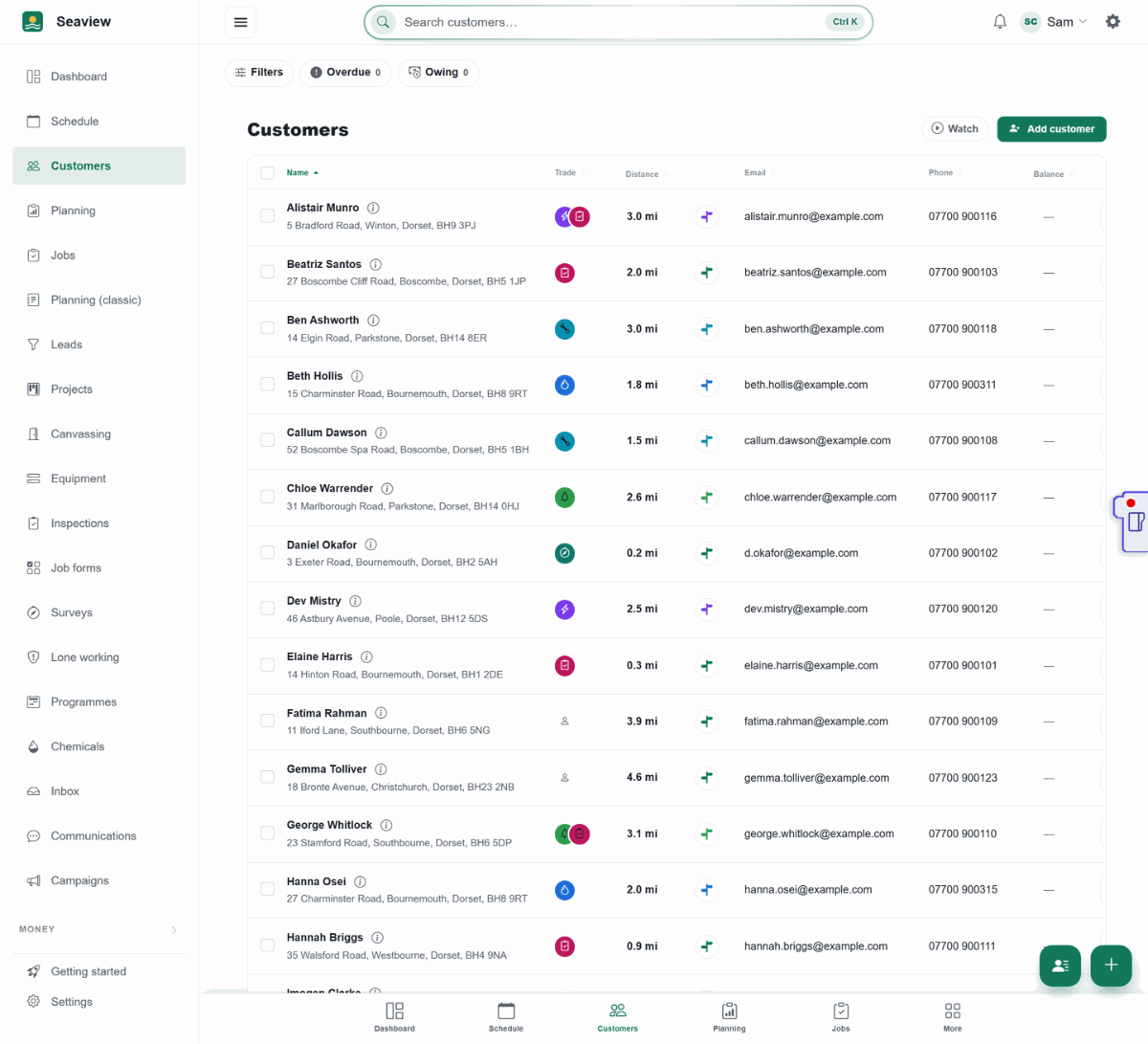
The real thing
As it looks today
A real screen from the product, not a mock-up. The same screen is on the phone app.
No signal, no problem
Works the same with the signal gone

On the job
Up a loft, down a cellar
The phone works with no signal; changes queue and sync when you're back in range.
The record, updated either way 
Fitting the panels
On the roof, off the grid
Commissioning records save on the phone and sync themselves once you're back down.
Filed the moment it syncs


A morning on your phone
Your day, in your pocket
From the first tap to the customer's door, on the phone you already carry.
7:30 am
Open it like any app
A clear welcome the first time. Once you have signed in on that phone, it goes straight to Sign in.
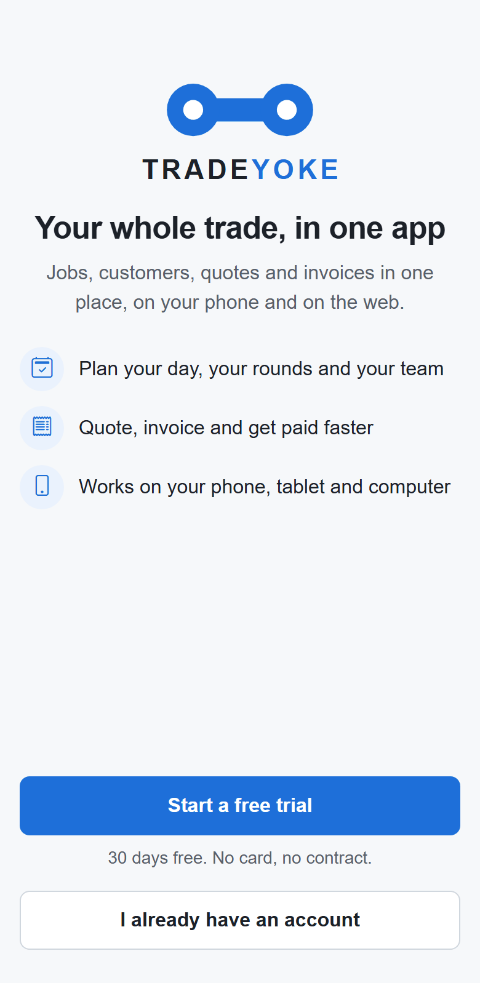
The first screen: start a trial, or sign in 
7:45 am
The work comes first
Today's jobs, what is outstanding and who owes you, before anything else.
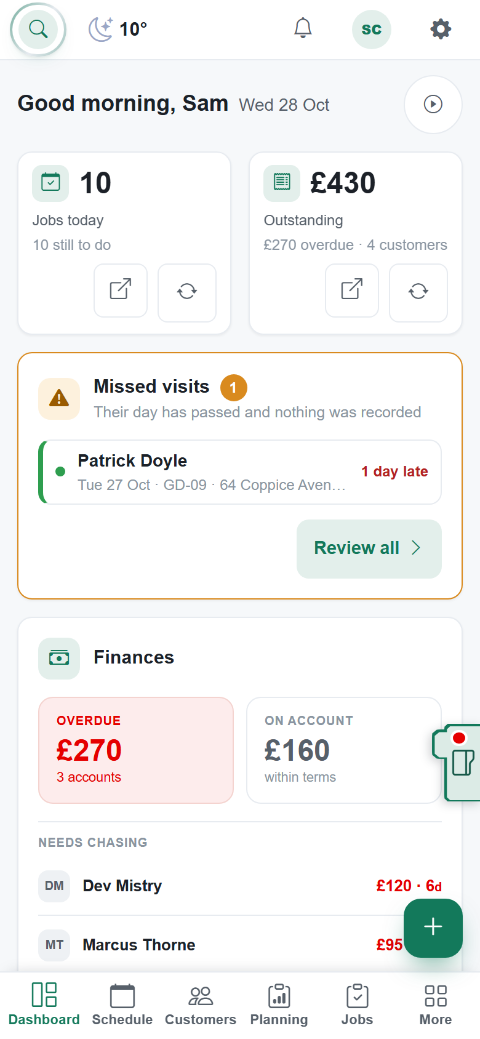
Jobs, money outstanding, who owes you 
9:10 am
Straight to the door
Search for the customer, see where they are on the map and tap Directions.
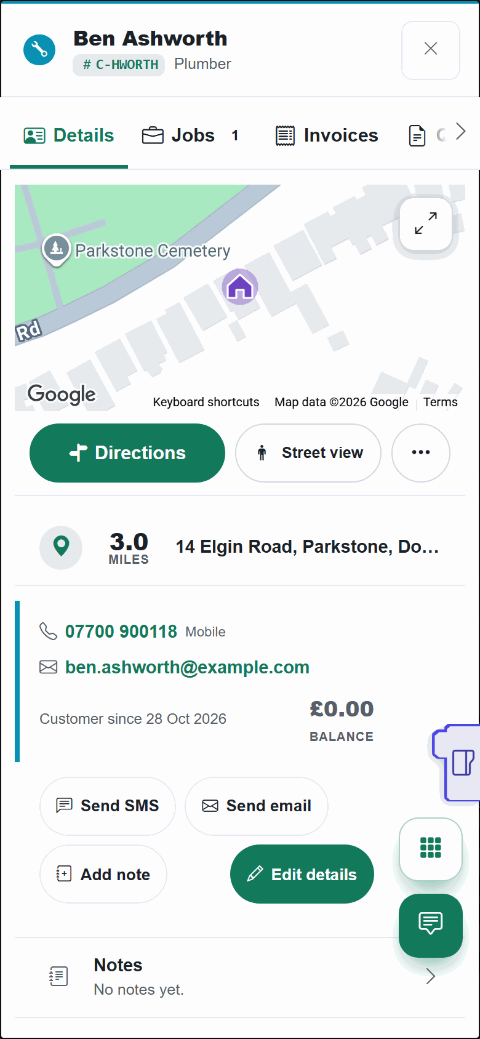
Their address, Directions and Street view


More of it, as it looks today


The details
Also worth knowing
- iOS, Android and WindowsThe same code as the web app, built as native apps now in pilot. Ask for early access.
- Camera and locationPhotos file to the job; the app reports position for live monitoring.
- Secure sign-in on deviceMicrosoft-backed sign-in with the token held in the platform's secure storage.
- Made for iPads and Android tabletsOpen TradeYoke in the browser on an iPad or an Android tablet and it fits the screen: a docked menu on a landscape iPad, a footer bar and slide-out menu when it is upright, finger-sized buttons, and Plan my day's seven days on a row of their own. Open it once with signal and it keeps working with no signal too; the apps in pilot also send your changes in the background.
- Works in your phone's browser, and from your home screenOpen TradeYoke in the browser on any phone and add it to your home screen: it opens full-screen without the browser bar. The bottom bar and buttons get out of the way as you scroll or type, buttons are thumb-sized, and the menu slides out. Open it once with signal and it keeps working with no signal too; the Android, iPhone and Windows apps in pilot also send your changes in the background.
- A welcome that works like an appOpen TradeYoke on a phone for the first time and you get a clear welcome: Start a free trial, or I already have an account. Once you have signed in on that phone or browser, it takes you straight to Sign in next time. There is one Sign in button, and the help for "how did I sign up?" waits behind Trouble signing in?.
- Your work first on a phoneThe phone home screen leads with today's jobs, what is outstanding and who owes you, under a one-line greeting. Search opens across the whole top bar, bigger and easier to type in, with a clear Close button, and the weather sits beside it as a small chip: tap it for today and the next four days.
- Maps that fit a phoneA customer's or job's map shows as a small preview with Directions and Street view underneath. Tap the map to open it full screen, where Layers lets you choose what to show: vehicles, jobs, customers, and Map or Satellite.
- Customer tabs in one swipeable rowA customer's tabs (details, finance, jobs and the rest) sit in one row you swipe along, so a record is easy to read with one thumb.
- Finish setting up in one slim barSetup sits in one slim bar under your greeting. Tap it to see what is done, what is partly done and what is left, with a link straight to each task. The setup guide always has a close button at the top.
- Side menu that keeps the essentials in reachGetting started, Settings and the version stay at the bottom of the screen; only the menu items scroll, with a fade showing there is more.
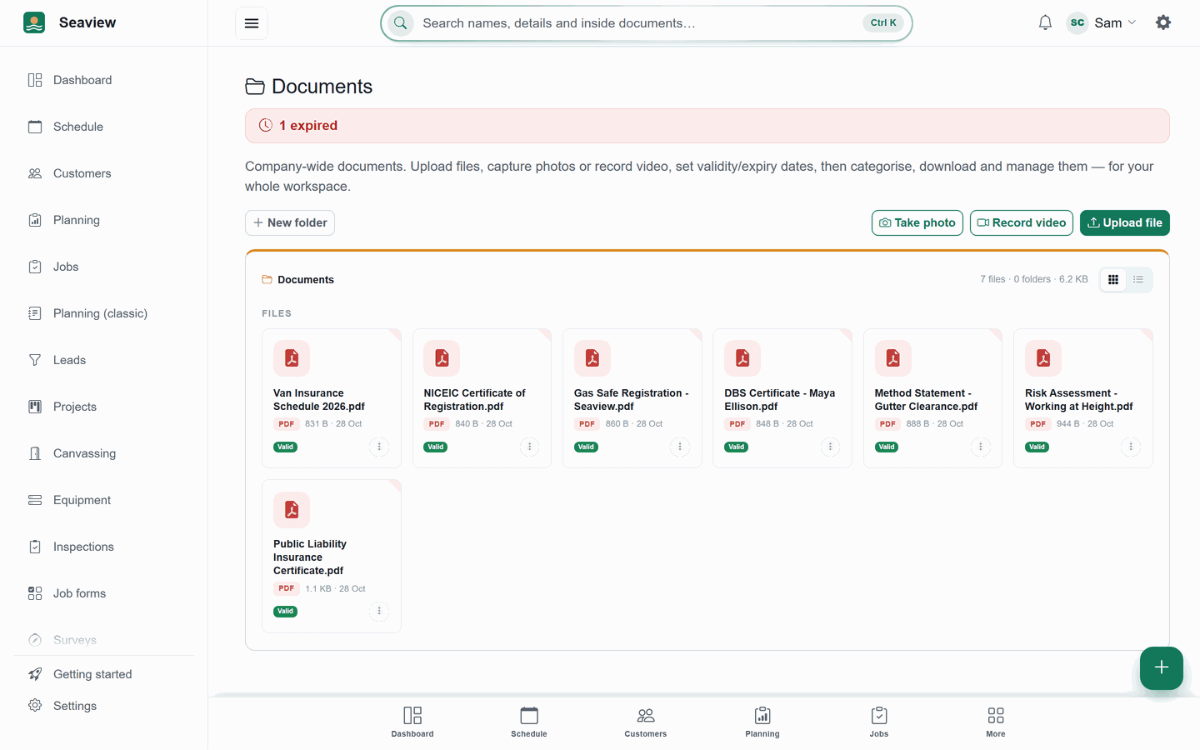
- Your data first on a phoneOn a phone, Schedule, Customers, Invoices, Leads, Expenses, Documents, Suppliers, Team, Vehicles and Assets show more of your data before you scroll, with less space taken by headers and filters. Desktop and tablet screens are unchanged.
- A friendly page when a link goes nowhereA mistyped or old link now shows a friendly page with a way back to where you were, such as Back to Jobs, plus Home and search, instead of a blank screen.
Questions
Asked about offline-first mobile app
Which features work offline?
The daily round for window cleaning and gardening — viewing stops, marking done or skipped, notes — and adding customers. Quotes, invoices, payments in cash, messages and certificates work with no signal too. Card payments and a few office tools need a connection and say so.
What happens if two people edit the same thing?
The sync engine's rules decide: your unsent local work is never overwritten, and the conflict is surfaced rather than silently lost.
Does the web app work offline?
Yes, after one visit. Open the web app once with signal and it keeps working with no signal; in Chrome or Edge it even sends your changes after you close the tab, and in Safari or Firefox they send the next time you open a tab. A few pages need a connection and say so.
Does TradeYoke work on an iPad or Android tablet?
Yes, in the browser on an iPad or an Android tablet, today. The layout is built for a touch screen in portrait, landscape and Split View: a docked menu on a landscape iPad, a footer bar and slide-out menu when it is upright, and buttons of at least 44 pixels. Open the web app once with signal and it keeps working with no signal too. The Android, iPhone and Windows apps, which also send your changes in the background, are in pilot and not yet in the app stores; email hello@tradeyoke.net for early access.
Do I need to install an app to use TradeYoke on my phone?
No. TradeYoke works in the browser on any modern phone today. For an app-like feel, use your browser's Add to Home screen option (on iPhone, Share then Add to Home Screen; on Android, the browser menu then Add to Home screen or Install app) and it opens full-screen without the browser bar. Open the web app once with signal and it keeps working with no signal too. The Android, iPhone and Windows apps, which also send your changes in the background, are in pilot and not yet in the app stores; email hello@tradeyoke.net for early access.
What does TradeYoke look like on a phone?
TradeYoke opens on a welcome screen (Start a free trial, or I already have an account), then to a home screen that leads with today's jobs, what is outstanding and who owes you. Search and the weather sit in the top bar, a customer's map is a small preview with Directions and Street view, and tapping it opens the map full screen with Layers. It works in your phone's browser today, and you can add it to your home screen so it opens full-screen like an app.
How do I get directions to a customer from TradeYoke on my phone?
Open the customer or the job. The map preview has a Directions button, which opens directions to the address, and a Street view button, so you can see the house before you arrive. Tap the map itself to open it full screen.
Where do I see what's left to set up?
Under your greeting on the dashboard there is a slim bar showing your next task and how many are left. Tap it to open the list: what is still to do comes first, then what is done, each with a link to the task.
Does TradeYoke show more of my lists on a phone?
Yes. Since release 0.3.45, the Schedule, Customers, Invoices, Leads, Expenses, Documents, Suppliers, Team, Vehicles and Assets screens in TradeYoke put your data first on a phone, so more rows are visible before you scroll. Desktop and tablet layouts are unchanged.
See also: offline-first in practice
Try offline-first mobile app on your own work
30 days of Essentials free, no card. Import your customers and see it against a real week.